
Pixel Art Coloring by Number: A Beginner's Guide
Learn what color-by-number pixel art is, how a coloring session works, and how to pick your first canvas size. A calm, judgement-free guide for beginners.
By Paweł Tymczuk · · Updated
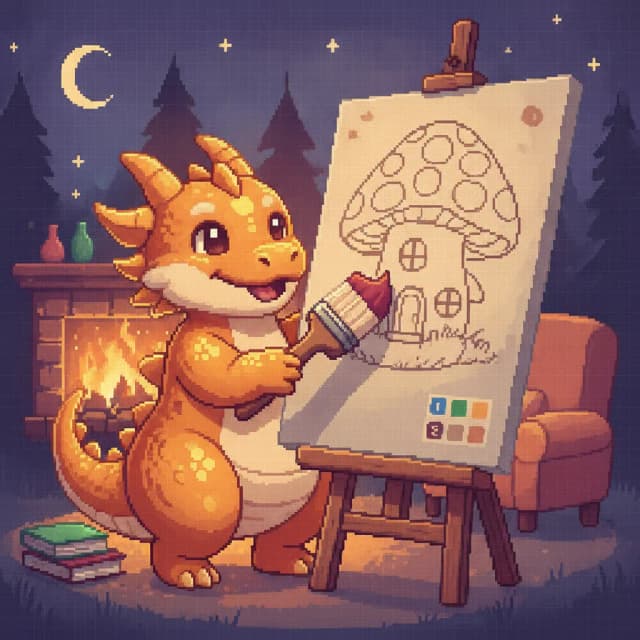
Color-by-number pixel art is a relaxing puzzle activity where a picture is divided into a grid of pixels, each labeled with a number that matches a color. You tap a numbered cell and it fills in. There's no drawing, no shading, and no way to make a mistake.
What is color-by-number pixel art?
Color-by-number pixel art combines two simple ideas. The first is the numbered grid: an artwork is broken into small square cells, and every cell shows a number. The second is the palette: a row of colors, each one tied to a number. Match them up (tap every cell marked 4 with color 4) and a finished picture appears, one square at a time.
Think of it as a coloring book crossed with a crossword. A coloring book gives you regions to fill but leaves the color choices to you. A crossword gives you exact answers but no picture at the end. Pixel coloring sits in the middle: the answers are already decided, and the reward is watching a fox, a cupcake, or a mandala emerge from a wall of gray numbers.
Because the grid does all the planning, there's no skill barrier. You never mix colors. You just tap. That's the whole game, and that's the point.
Where did pixel art coloring come from?
Two older traditions meet here. Paint-by-number kits became a craze in the 1950s: a canvas arrived pre-printed with numbered regions, each number matched a small pot of paint, and people who swore they couldn't paint finished real landscapes and still lifes at their kitchen tables. The promise was gentle and honest — follow the numbers, get a painting.
Pixel art grew up separately, in the 1980s. Early game consoles and home computers could only show a limited number of chunky on-screen squares, so artists placed each one deliberately, squeezing charm out of tiny grids. What began as a hardware limit became a style people genuinely love: blocky and nostalgic.
Color-by-number pixel art is the natural merger. A pixel grid is already a set of discrete cells, so numbering those cells turns any pixel artwork into a paint-by-number canvas — one that fits in your pocket and never dries out.
How does a pixel art coloring session work?
A session follows a simple loop. You open an artwork and see a grid of numbered cells in soft gray. Below or beside it sits the palette — each color chip labeled with its number. You pick a color, the matching cells stand out on the canvas, and you tap (or drag across) them to fill. When one number is done, you move to the next.
In Pixfun, that loop stays deliberately unhurried. There are no timers and no move limits, so a picture can take one sitting or ten. Pinch to zoom in for fiddly corners, zoom out to admire progress, and put the canvas down whenever life interrupts — it'll be exactly where you left it.
Most people settle into one of two rhythms:
- Color by color. Pick a number and sweep the whole canvas for it. Meditative and methodical; the image appears in ghostly layers.
- Region by region. Finish one area (the owl's face, the slice of cake) before moving on. More narrative; you get small reveals along the way.
Neither is correct. Try both and keep whichever quiets your head.
Which canvas size should you start with?
Pixfun AI Studio offers 48×48, 64×64 and 96×96, with 96×96 selected by default. Choose at least 64×64 for a clearer visual representation of generated subjects, or 96×96 for fuller scenes. The selector shows dimensions rather than Easy, Medium and Hard labels.
| AI Studio grid | Total grid cells | Starting consideration |
|---|---|---|
| 48×48 | 2,304 | Fewer cells; check that the subject stays recognizable. |
| 64×64 | 4,096 | Recommended for clearer generated subjects. |
| 96×96 | 9,216 | More room for fuller scenes. |
These are total positions in the grid, not required taps or promised coloring times. Large repeated color areas and tiny isolated cells can feel quite different. Pick a picture you like and color it at your own pace.
Photo mode has a separate slider from 16×16 up to 96×96. Library pictures and older artworks can also have other grid sizes.
Why do people love coloring by number?
Three things keep people coming back, and none of them require talent.
Every cell already has its right answer printed on it, so the stakes stay low. You can't ruin the picture. For a hobby you reach for at the end of a long day, the absence of failure is a feature, not a lack of challenge.
Progress is visible. Each tap changes the canvas. Unlike habits where results hide for weeks, pixel coloring pays you continuously — a blank grid at minute one, a recognizable owl by minute ten.
Tap, fill, tap, fill: the repetition itself is calming. The gentle rhythm gives restless hands something to do and busy minds a single small task. We look at that calming effect more closely in pixel art coloring for relaxation.
Pixfun leans into this with soft gamification: daily streaks, AI credits, coins, and rewards for showing up, without ever punishing you for a day off.
What should beginners know before their first canvas?
A few habits make early sessions smoother:
- Start small. One finished 32×32 beats three abandoned 96×96s. Finish first, scale later.
- Pick a subject you like. Pixfun's library holds over 10,000 curated artworks across 15 categories, including Cute, Food, Kawaii, Animal, Mandala, Fantasy, and more. A picture you care about is easier to return to.
- Use the zoom. Squinting at tiny cells is the fastest way to tire out. Zoom in close, fill comfortably, zoom out for the reveal.
- Let the highlight guide you. When you select a color, the matching cells stand out. Follow them like a trail instead of scanning the grid yourself.
- Remember there are no wrong moves. If a cell is numbered 7, color 7 goes there. The puzzle carries the responsibility so you don't have to.
How does AI change pixel art coloring?
Until recently, every color-by-number app worked from a fixed library: artists drew the puzzles, and you colored what they made. AI generation changes the shape of the hobby, because the library stops being a ceiling.
In Pixfun's AI Studio, you type any prompt (say, "A brown owl peeking out of a hollow") and about a minute later you have a brand-new pixel puzzle, numbered and ready to color. Each generation costs one AI credit and comes in your choice of ten styles, from Kawaii and Pastel to 8-Bit Retro, Cyberpunk, and Noir. If you're out of ideas, a "Surprise me" dice rolls a random prompt for you, and automatic prompt enhancement fills in the descriptive details you didn't think to add.
There's also photo-to-pixel: point Pixfun at a photo from your camera or library (your dog, your street, last summer's beach) and it becomes a colorable puzzle.
If that side of the app interests you, our AI pixel art generator guide walks through prompts, styles, and credits in detail.
How can you try pixel art coloring?
You have plenty of options — we compare the major players in our roundup of the best color-by-number apps and in our comparison pages. Our own answer is Pixfun: a color-by-number pixel art game with a 10,000+ artwork library, three canvas sizes, AI generation, and photo conversion, available now on the App Store and Google Play.
Pixfun is free to download, and you can play anonymously from the first tap — no account required. If you later sign in with Apple, Google, or email, your progress syncs across devices. An optional Pixfun Pro subscription gives you the full library, removes ads and watermarks, and adds monthly AI credits and coins; a one-time purchase quiets interstitial and banner ads forever.
However you start, start small, pick a picture that makes you smile, and let the numbers do the worrying. No skill. Just calm. When you're ready to fill your first cell, Pixfun is waiting.
Frequently asked questions
What is pixel art coloring by number?
Pixel art coloring by number is a puzzle activity where an image is split into a grid of pixels, and every pixel carries a number that matches a color in a palette. You select a color, tap the matching cells, and the picture slowly appears. No drawing skill is needed — the numbers do the planning, and you enjoy the filling.
What pixel canvas size is best for beginners?
For generated subjects in Pixfun AI Studio, choose at least 64×64 for a clearer visual representation, or 96×96 for fuller scenes. The selector offers 48×48, 64×64 and 96×96, shown as dimensions. Pick a clear subject and inspect the result; grid size alone does not predict completion time.
Do I need any art skills to color pixel art?
No. Every decision is made for you: the artwork, the palette, and the placement of each color are all built into the numbered grid. Your only job is tapping cells that match the selected number, which is why the hobby feels so low-pressure. If you can tap a screen, you can finish a pixel artwork.
Can AI generate new pixel art coloring pages?
Yes. In Pixfun's AI Studio you type a prompt — for example, a brown owl peeking out of a hollow — and the app generates a brand-new colorable pixel puzzle in about a minute. You can pick from ten art styles, roll a random prompt if you are out of ideas, or turn one of your own photos into a puzzle.
Is Pixfun free to play?
Pixfun is free to download and you can start coloring right away, no account needed. An optional Pixfun Pro subscription unlocks every artwork, removes ads and watermarks, and adds monthly AI credits and coins. There is also a one-time purchase that removes interstitial and banner ads forever. Pixfun is available on the App Store and Google Play.