
AI Pixel Art Generators: How They Work and How to Get Good Results
Learn how AI pixel art generators work, why pixel art trips up general image AI, and how to write prompts that get good results — a calm, practical guide.
By Paweł Tymczuk · · Updated
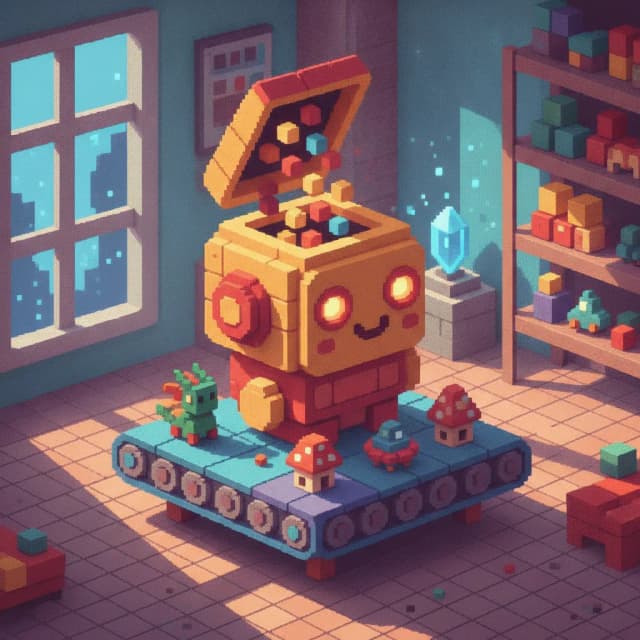
An AI pixel art generator is a tool that turns a short text prompt into pixel art — a small image built on a visible grid of colored squares, drawn with a limited palette. You type a few words, wait a moment, and get artwork that looks placed pixel by pixel.
What Is an AI Pixel Art Generator?
In practice, that means software that creates pixel art from a text description. Instead of drawing each square yourself, you describe the picture, say "a red fox sleeping in the snow," and the generator produces it in a pixel-art style: hard edges, a small set of colors, and shapes that sit cleanly on a grid.
There are two broad kinds. General image AI can be asked for a "pixel art style," and it will produce something pixel-flavored, often with soft edges and squares that don't quite line up. Purpose-built pixel art generators go further: they enforce a real grid and a constrained palette, so the output is actual pixel art, not a picture of pixel art.
Some tools stop at the image. Others, like Pixfun, turn the generated artwork into something you can do: a color-by-number puzzle you fill in yourself. Type it. See it in pixels — then color it, one numbered square at a time.
How Does Text-to-Pixel Generation Work?
At a friendly level, three things happen. First, the model has learned from many examples of pixel art, so it knows what the style looks like: chunky shapes, flat colors, readable outlines. Second, your text prompt tells it what to draw, and it composes an image that matches both your words and that learned aesthetic. Third, constraints tidy the result into true pixel form: the image snaps to a fixed grid, and the colors get reduced to a small, deliberate palette.
That last step matters more than it sounds. Pixel art isn't just a low-resolution photo. Instead, it's a set of choices: which twelve or twenty colors to use, where each edge lands, which details survive and which get dropped. A good generator makes those choices for you, so the result feels intentional rather than shrunken.
No deep math required to enjoy any of this. The short version: the model imagines the picture, then the pipeline disciplines it into a grid.
Why Is Pixel Art Hard for General Image AI?
Pixel art asks for almost the opposite of what general image models are good at. Three things trip them up:
- Crisp edges. Image models love soft gradients and gentle blending. Pixel art demands hard, stair-stepped edges where one square ends and the next begins. Blur is the enemy.
- Limited palettes. A general model happily uses thousands of subtle color variations. Pixel art works best with a couple dozen colors at most — each one chosen, none accidental.
- Readable silhouettes at tiny sizes. A 32×32 canvas has 1,024 pixels total. A cat has to read as a cat with maybe 300 of them. Every square carries weight, and general models aren't trained to budget that carefully.
You can spot the difference in the output. Faux pixel art has "pixels" of slightly different sizes, edges that smear, and palettes that drift. Purpose-built generators avoid these tells because the grid and palette are enforced, not merely imitated. That's the practical reason a dedicated tool tends to give you cleaner results than a general model with "pixel art" tacked onto the prompt.
If you're comparing tools in this space, we keep an honest side-by-side at Pixfun vs Color Pop AI.
How Do You Write a Prompt That Works?
A reliable prompt has three parts: subject + mood + setting. That's the whole anatomy.
- Subject: the one thing the picture is about. "A brown owl." "A lighthouse." "A sleeping dragon."
- Mood: a feeling word or a lighting cue. "Cozy." "Stormy." "At sunset."
- Setting: where it lives. "In a hollow tree." "On a cliff." "In a candy shop."
The single most useful rule: concrete nouns beat adjectives. A generator can draw "a brown owl peeking out of a hollow" (that's Pixfun's own in-app example), and it works because every word is drawable. It can't do much with "an epic awesome bird with amazing vibes." Epic is not a shape. Hollow is.
A few more habits that help:
- One subject per prompt, especially on small canvases. A crowd leaves less room for each recognizable shape.
- Say the color if you care about it. "A red mushroom house" lands more reliably than hoping.
- Keep it short. One sentence is plenty. Prompt length isn't prompt quality.
Stuck for ideas? We keep a running list of prompts that generate well in our pixel art prompt ideas post, good for borrowing or remixing.
How Does Pixfun's AI Studio Work?
Pixfun's AI Studio turns a prompt into a colorable pixel puzzle in about a minute. The flow is short:
- Type your prompt. Anything you like. If your mind is blank, tap the "Surprise me" dice and Pixfun rolls a random prompt for you.
- Pick a canvas size. The current options are 48×48, 64×64 and 96×96, shown as dimensions. Choose at least 64×64 for a clearer visual representation, or 96×96 for fuller scenes. The default is 96×96; cell count alone does not predict coloring time.
- Pick one of ten styles. One tap sets the whole visual direction (more on each style below).
- Wait about a minute. Pixfun quietly improves your prompt behind the scenes: automatic prompt enhancement means "owl in tree" still comes out composed and lit like a proper scene. You can also toggle background removal if you want your subject on a clean backdrop.
Each generation costs 1 AI credit, and Pixfun Pro includes a monthly batch of credits. Pixfun is free to download on iOS and Android.
The Ten Styles, One Line Each
- Classic: straightforward pixel art, clean grid, balanced colors, no gimmicks.
- Kawaii: round shapes, big eyes, maximum charm.
- 8-Bit Retro: the old-console look, chunky and nostalgic.
- Cyberpunk: neon glow, night-city mood, rain-slick color.
- Fantasy: castles, dragons, and storybook magic.
- Anime: expressive characters with anime styling and bold shading.
- Pastel: soft, low-contrast colors that are gentle on the eyes.
- Noir: deep shadows, stark contrast, detective-movie mood.
- Nature: leafy greens and earth tones for landscapes and wildlife.
- Cartoon: bold outlines and bright, simple shapes.
Same prompt, different style, very different picture. Trying one prompt across two or three styles is a cheap way to learn what each one does.
What Happens After Generation in Pixfun?
Here's where Pixfun differs from most generators: the result isn't just a picture. Every generated artwork becomes a color-by-number puzzle. Each pixel in the grid gets a number, each number maps to a color in the palette, and you tap to fill them in — no timers, no move limits, no pressure. The generation is the beginning, not the end. Find calm, pixel by pixel.
If you're new to color-by-number, our pixel art coloring guide walks through how it works and how to pick your first canvas size.
And prompts aren't the only way in. Pixfun can also convert a photo from your camera or library into a colorable puzzle: from your photo to a puzzle, in the same way. We cover that flow in how to turn a photo into pixel art.
What Are the Honest Limitations?
AI pixel art generation is good, not magic. A few things worth knowing going in:
- Results vary. The same prompt can produce a keeper one time and a shrug the next. That's normal for this kind of tool, not a sign you did something wrong.
- Regenerating is part of the craft. Treat the first result as a draft. Nudge one word, swap the mood, change the setting, and run it again. Most good results are second or third attempts.
- Complex scenes need room. Keep one clear subject and a small number of supporting objects. Choose at least 64×64 for clearer generated subjects or 96×96 for fuller scenes. A larger grid still cannot guarantee every small detail.
None of this is a dealbreaker. It just means the best workflow is playful: generate, look, tweak, generate again. Ten styles. One tap. Low stakes.
Start With One Prompt
You don't need art skills to make pixel art anymore — just a sentence and a minute. Pick one concrete subject, give it a mood and a place, choose a style, and see what comes back. Then color it in, square by numbered square. Download Pixfun and see where your first prompt takes you. No skill. Just calm.
Frequently asked questions
What is an AI pixel art generator?
An AI pixel art generator is a tool that turns a short text prompt into pixel art — an image built on a fixed grid of colored squares with a limited palette. You describe what you want, and the generator produces art in that style. Purpose-built generators keep the grid honest and the colors few, which is what makes the result read as true pixel art rather than a filtered photo.
How long does AI pixel art generation take in Pixfun?
About a minute. In Pixfun's AI Studio you type a prompt, pick a canvas size (32×32, 64×64, or 96×96) and one of ten styles, and the generator builds a brand-new pixel artwork. Each generation costs 1 AI credit. When it finishes, the artwork arrives as a color-by-number puzzle, ready to fill in pixel by pixel.
What makes a good AI pixel art prompt?
Use a simple recipe: subject, mood, setting. Concrete nouns beat vague adjectives — the generator can draw a brown owl in a hollow, but it can only guess at something epic. Keep one clear subject, especially on small canvases, and add a mood word or a simple setting for atmosphere. If a result misses, tweak one part of the prompt and regenerate.
Can I color the pixel art that the AI creates?
In Pixfun, yes — that is the whole point. Every generated artwork becomes a color-by-number puzzle: each pixel gets a number that matches a color in the palette, and you tap to fill them in. There are no timers and no move limits, so you can color at your own pace. Pixfun is available now on the App Store and Google Play.
Is Pixfun free to use?
Pixfun is free to download, and you can color from a library of over 10,000 artworks. AI generation uses AI credits, and the optional Pixfun Pro subscription unlocks all artworks, removes ads and watermarks, and includes monthly AI credits and coins. Prices are set by the app stores and may vary by region; all purchases happen in-app.