
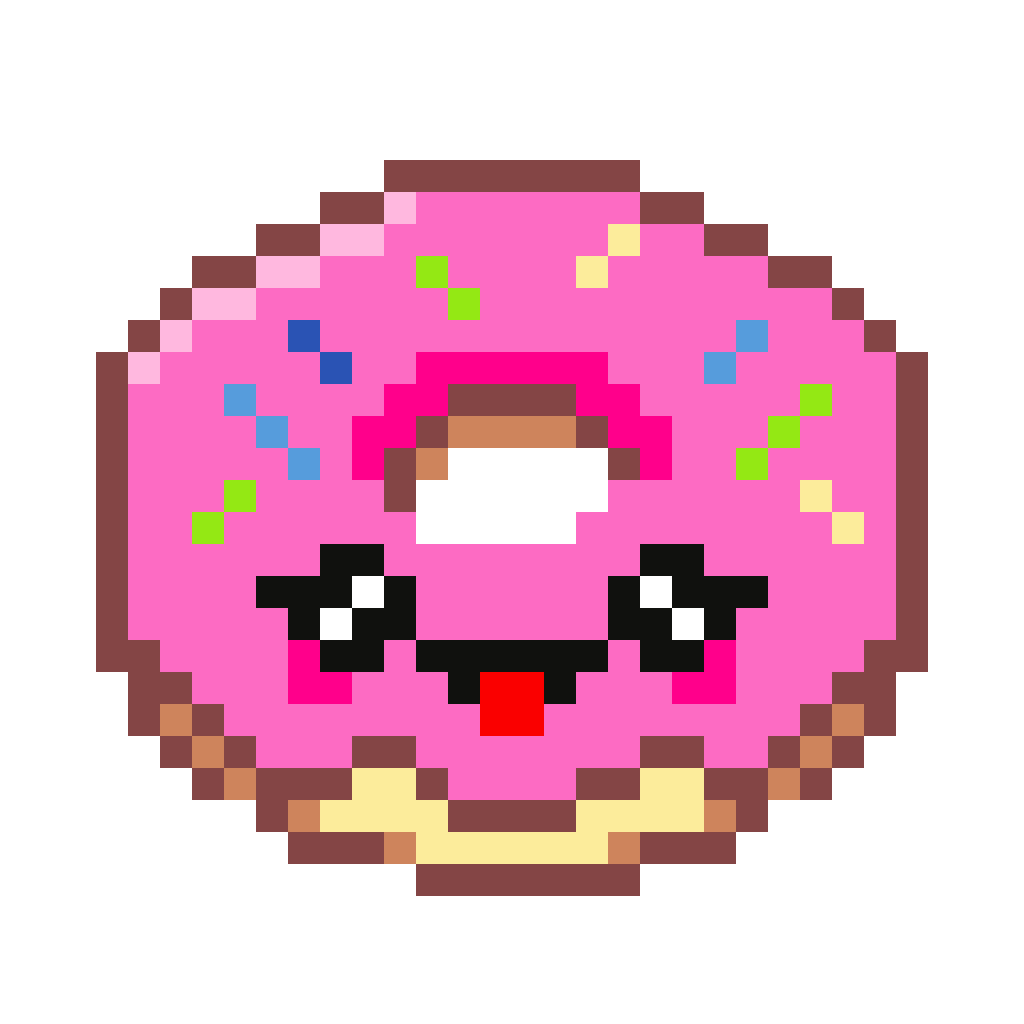
Food & treats · 32 × 32 · 12 colors
Donut pixel art
Leave the hole open as you count around the ring. Add the sprinkles after the frosting so each little color stays in the right place.
Pixfun donut
A small grid. A picture you made.
A donut, a tiny cat, a whale with somewhere to be. Choose from original Pixfun designs, follow the 32×32 grid, or let the numbers guide you.
Each picture below shows its full grid and exact palette. Pick a subject you like, copy it onto graph paper, or open the numbered canvas. Every worksheet in this selection fits on one A4 page.
Food & treats · 32 × 32 · 12 colors
Leave the hole open as you count around the ring. Add the sprinkles after the frosting so each little color stays in the right place.
Pixfun donut
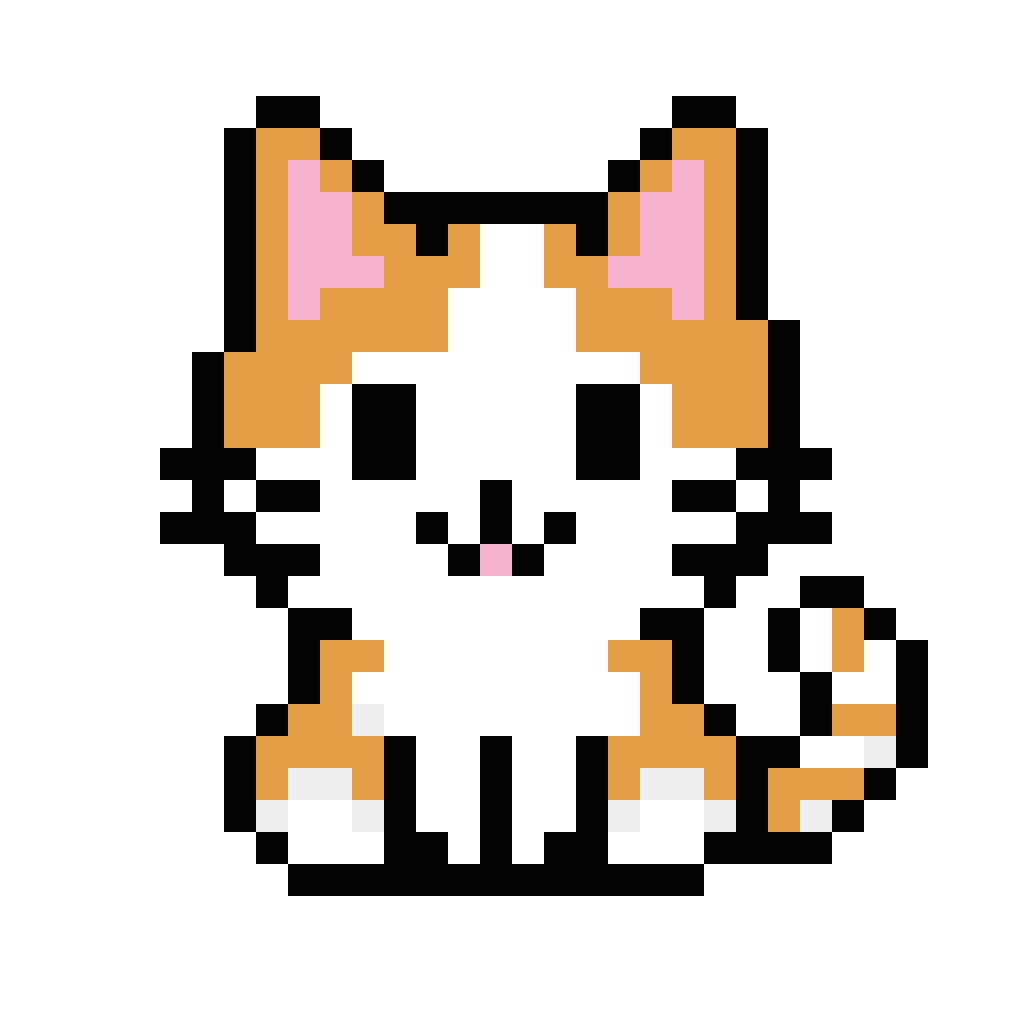
Cute animals · 32 × 32 · 5 colors
Start with the dark outline, then fill the larger orange and white patches. The five-color palette makes this a useful first animal grid.
Tiny Cat, Loud Presence

Cute animals · 32 × 32 · 6 colors
Count the widest row first to place the body. Keep checking the empty squares around the tail before adding the small details.
Spouting Off Again
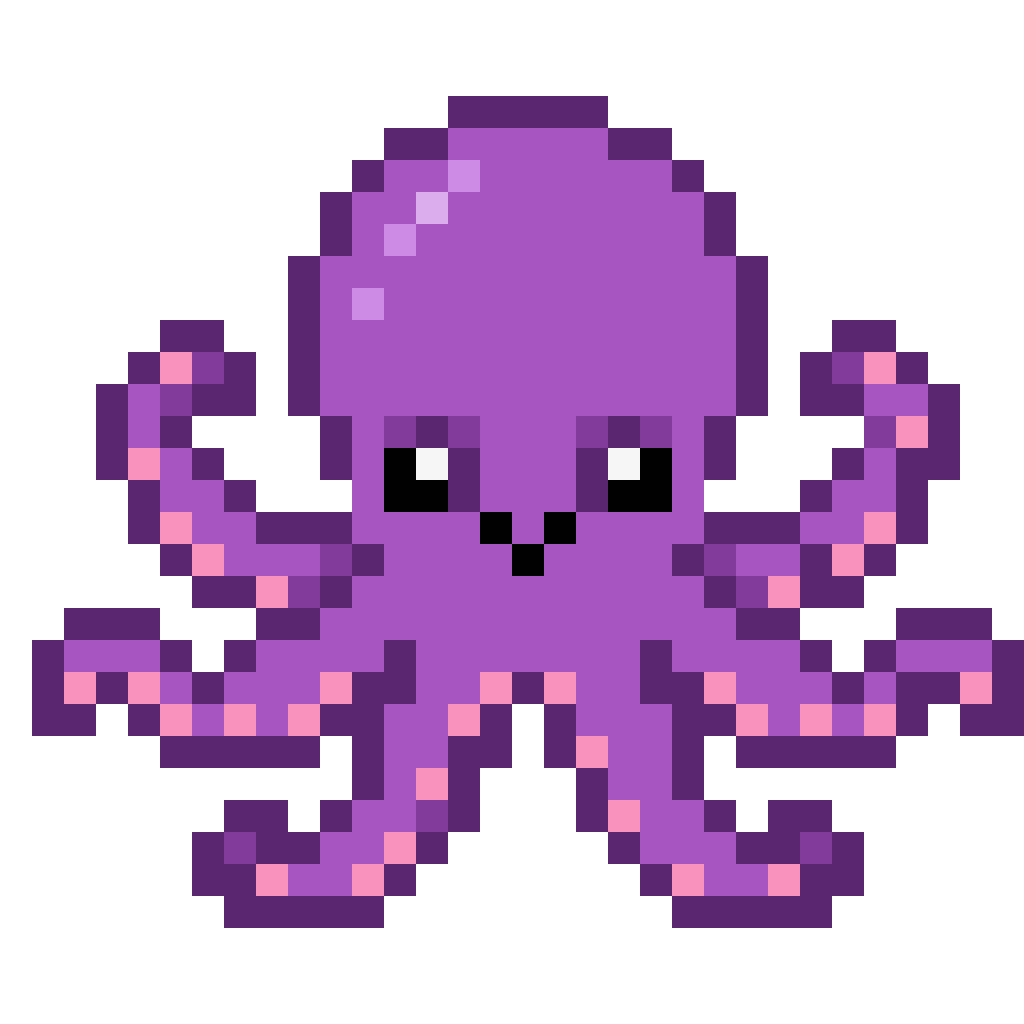
Cute animals · 32 × 32 · 8 colors
Trace one arm at a time instead of filling the whole bottom row. Empty squares between the arms help keep the shape readable.
Eight Arms, Zero Chill
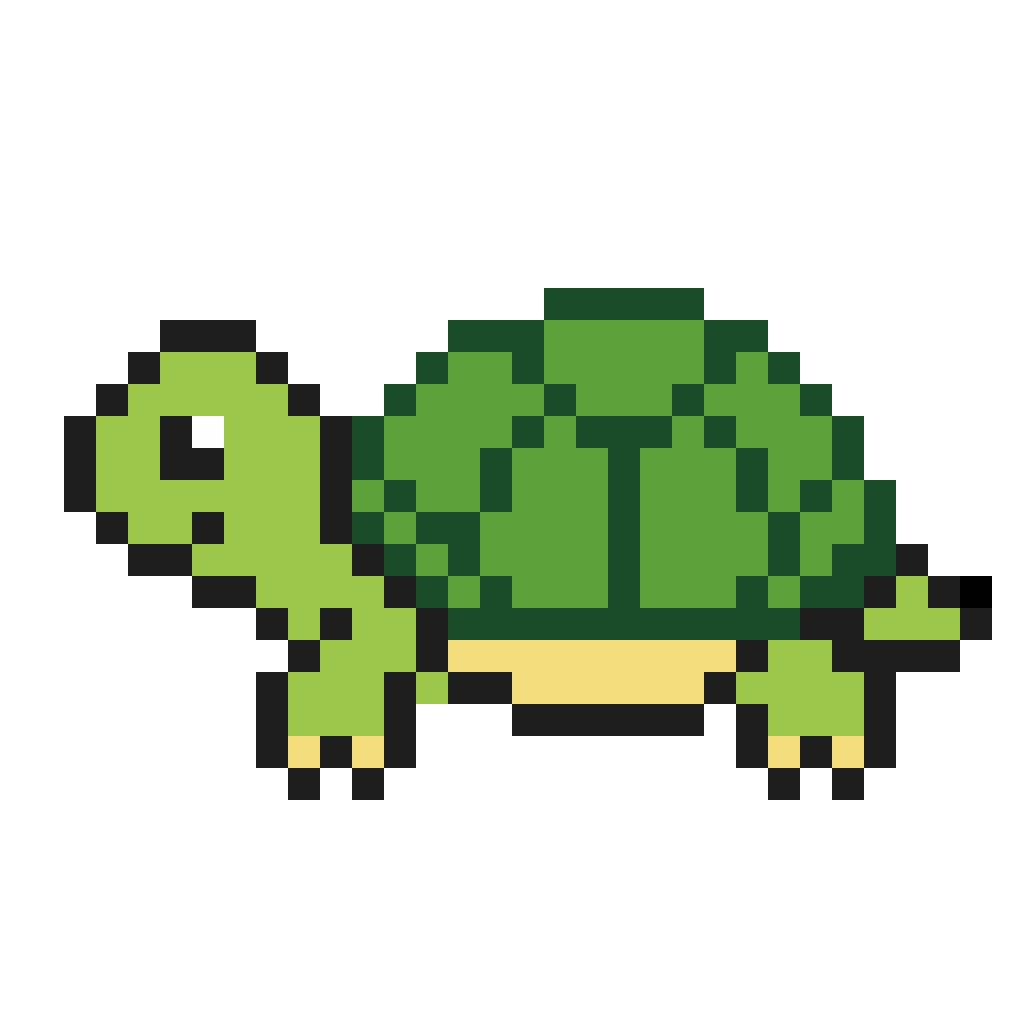
Cute animals · 32 × 32 · 7 colors
Block out the shell before adding the head and feet. Work from the broad shapes toward the smallest patches.
Nowhere Fast, No Regrets
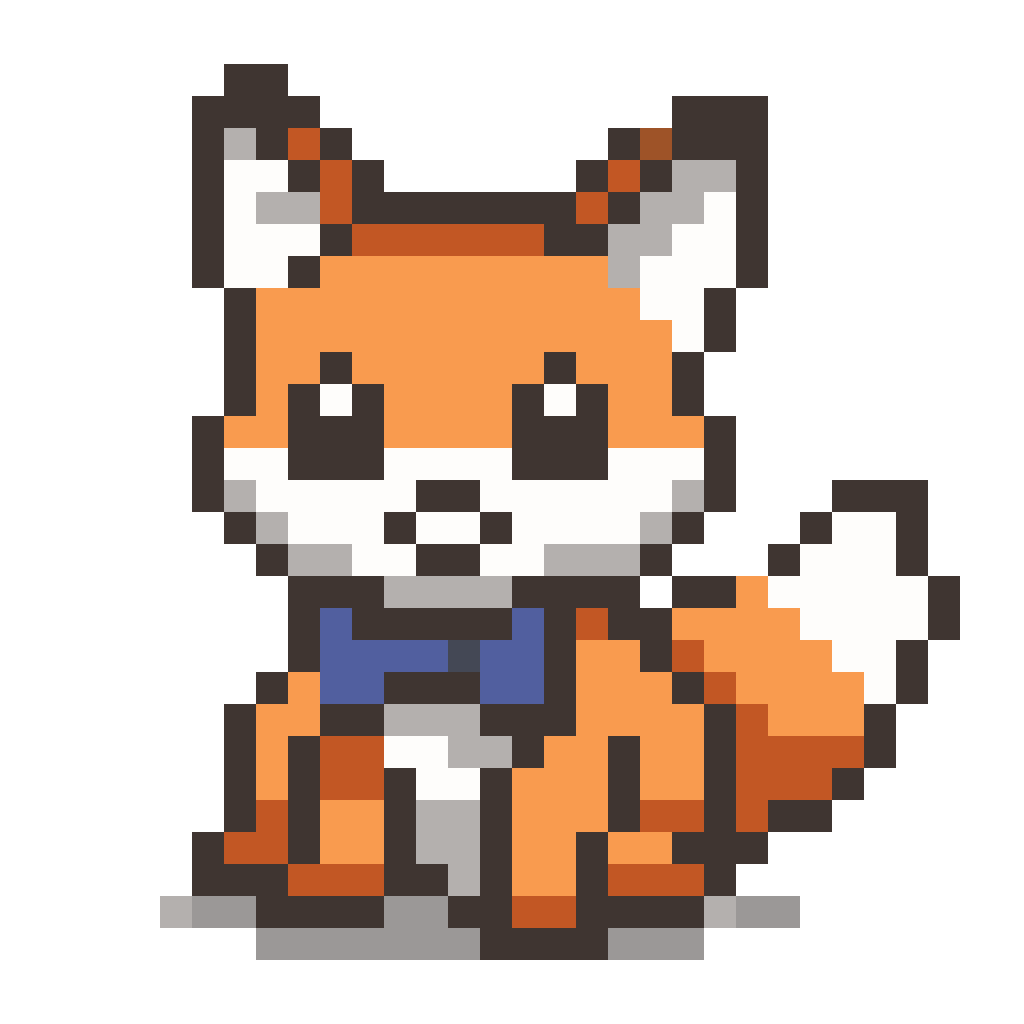
Cute animals · 32 × 32 · 9 colors
Use the face as your starting point, then count outward toward the ears. Keep the light face patches distinct from the darker outline.
Pudgy Fox Cub Bliss
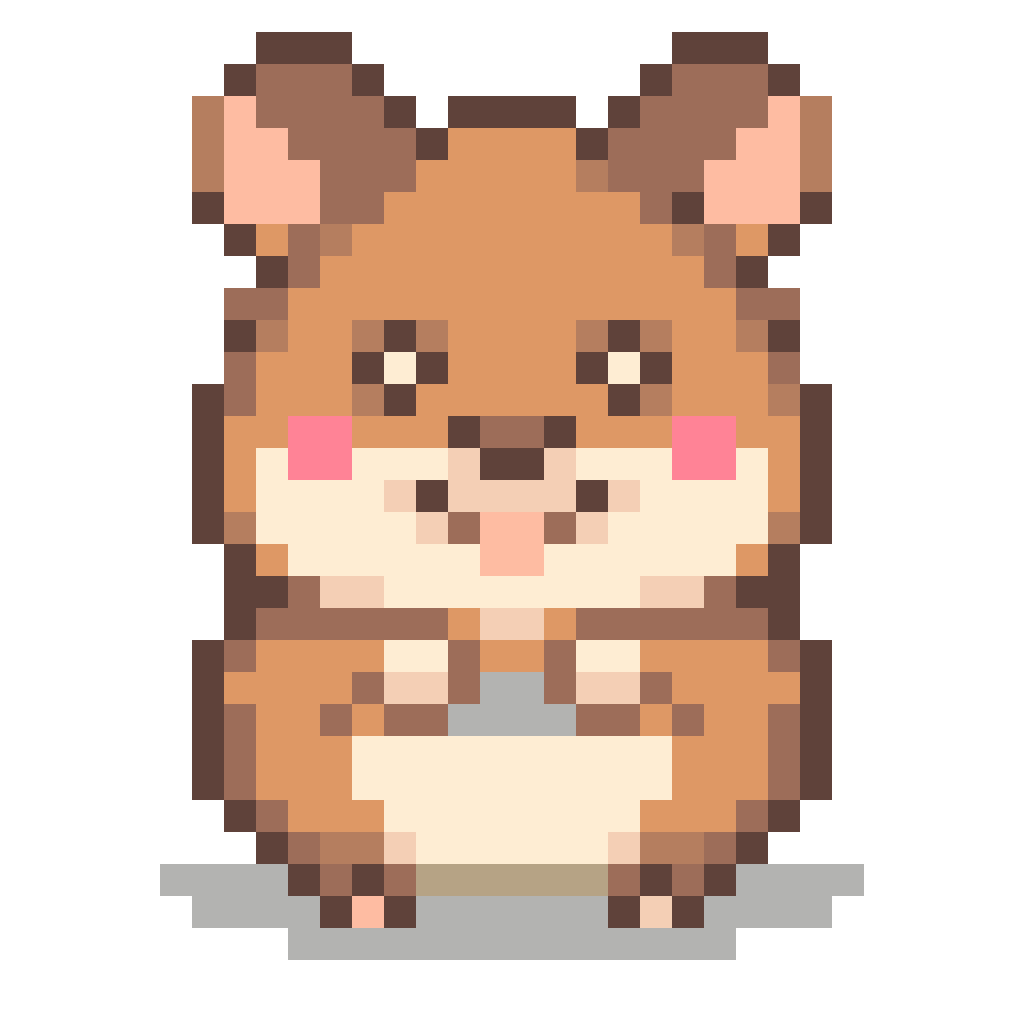
Cute animals · 32 × 32 · 10 colors
Place the face first so the cheeks stay balanced. Save the smallest highlights for the end and compare one row at a time.
Full Cheeks, No Regrets
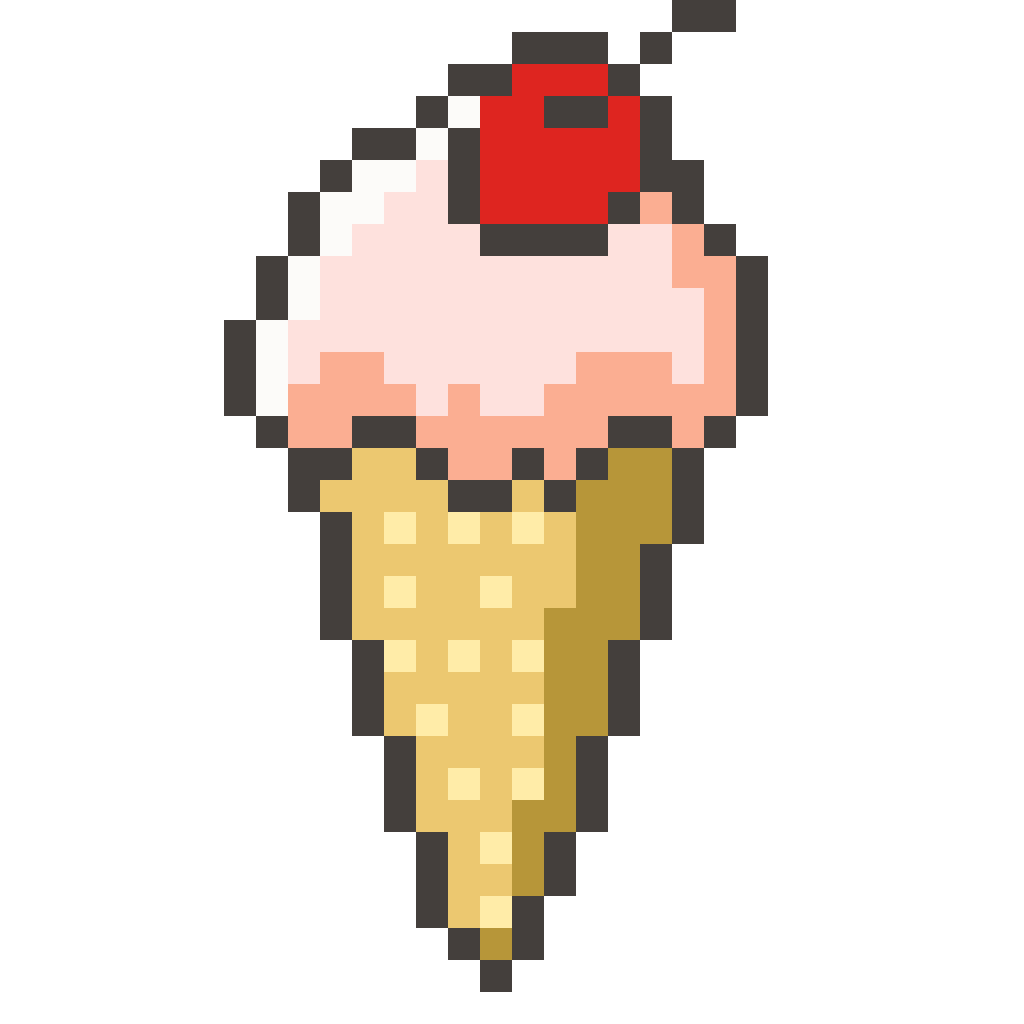
Food & treats · 32 × 32 · 8 colors
Work down from the topping to the base. Check the edges of each layer before you fill the middle.
Cherry On Top
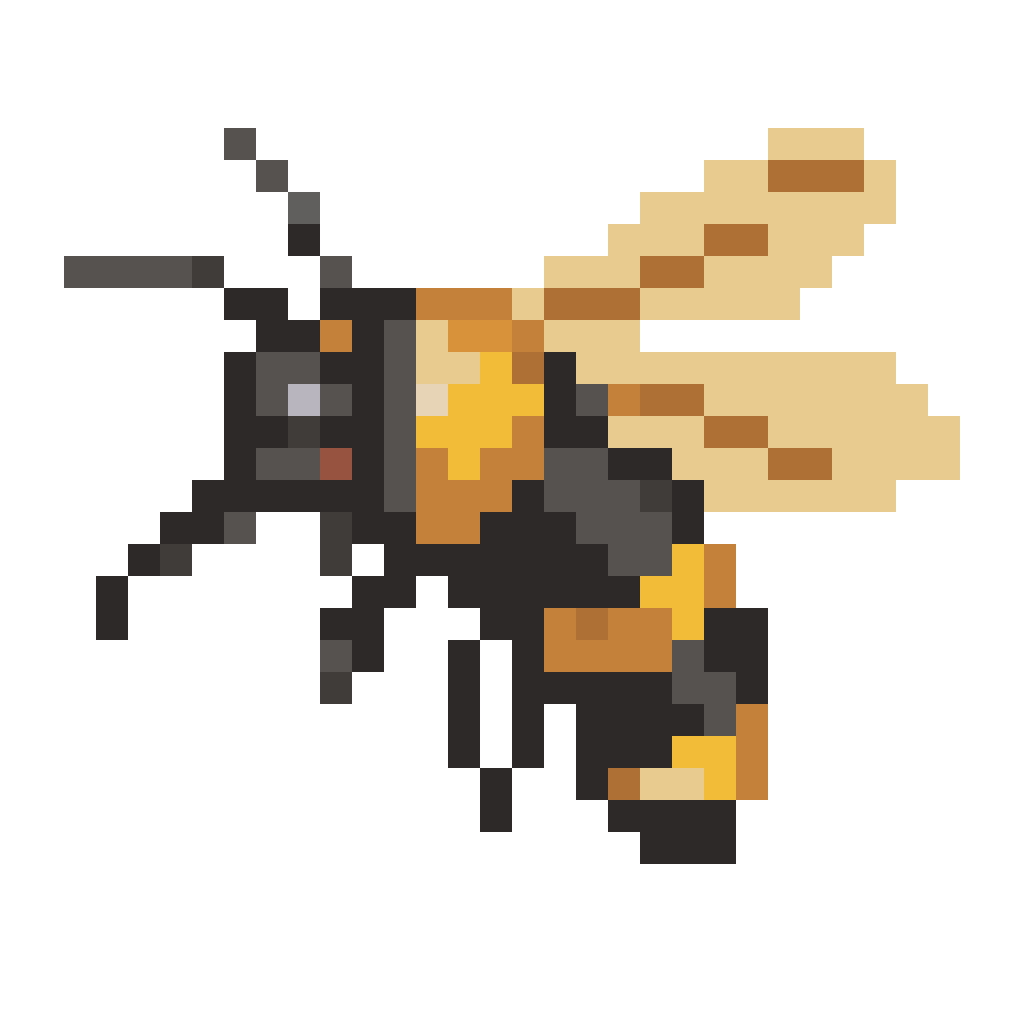
Cute animals · 32 × 32 · 12 colors
Separate the wing shapes from the striped body first. Counting the dark bands helps keep the little bee recognizable.
Buzzing with Purpose
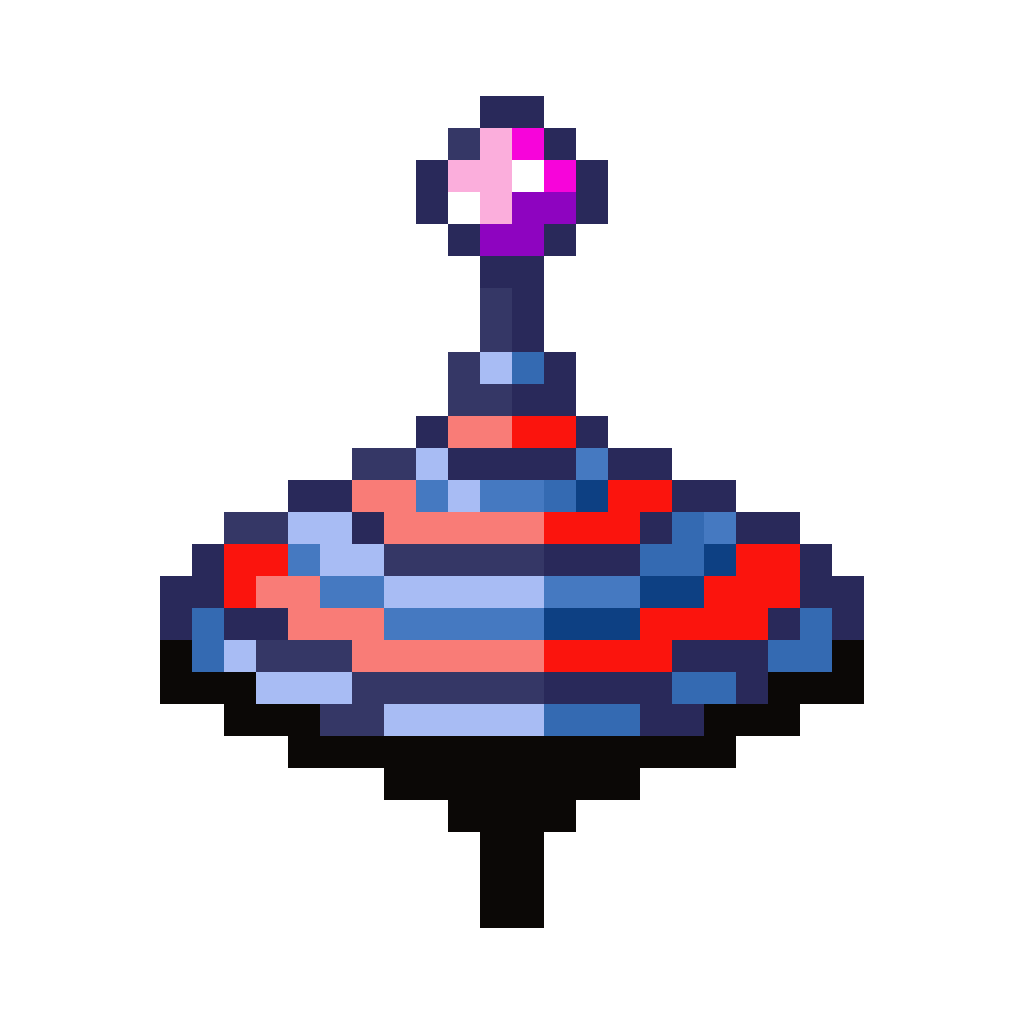
Playful objects · 32 × 32 · 12 colors
Mark the center of the design before filling its colored bands. Compare the width of each row as the shape narrows.
Spin to Win
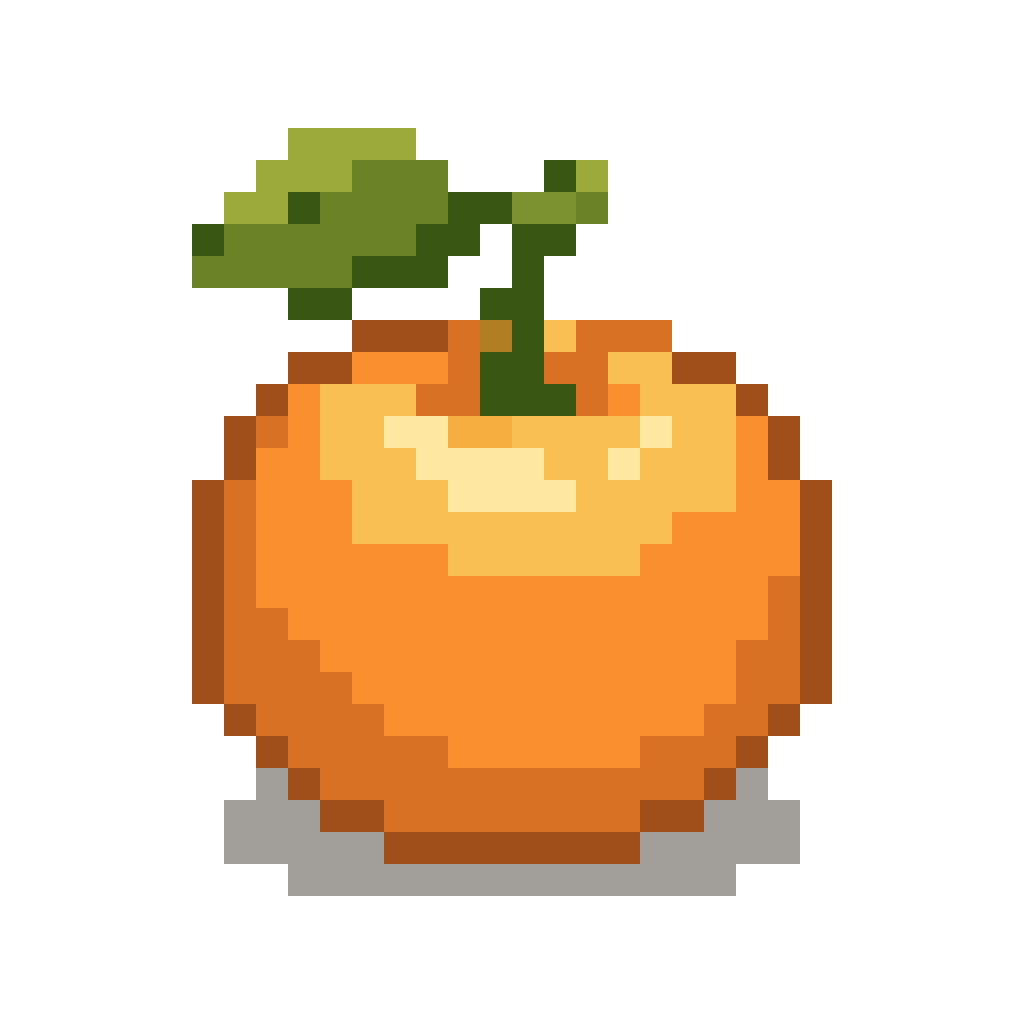
Food & treats · 32 × 32 · 12 colors
Begin with the round fruit shape and add its small leaf last. Use the darker orange patches to show the curve.
Tangerine with a Tiny Leaf
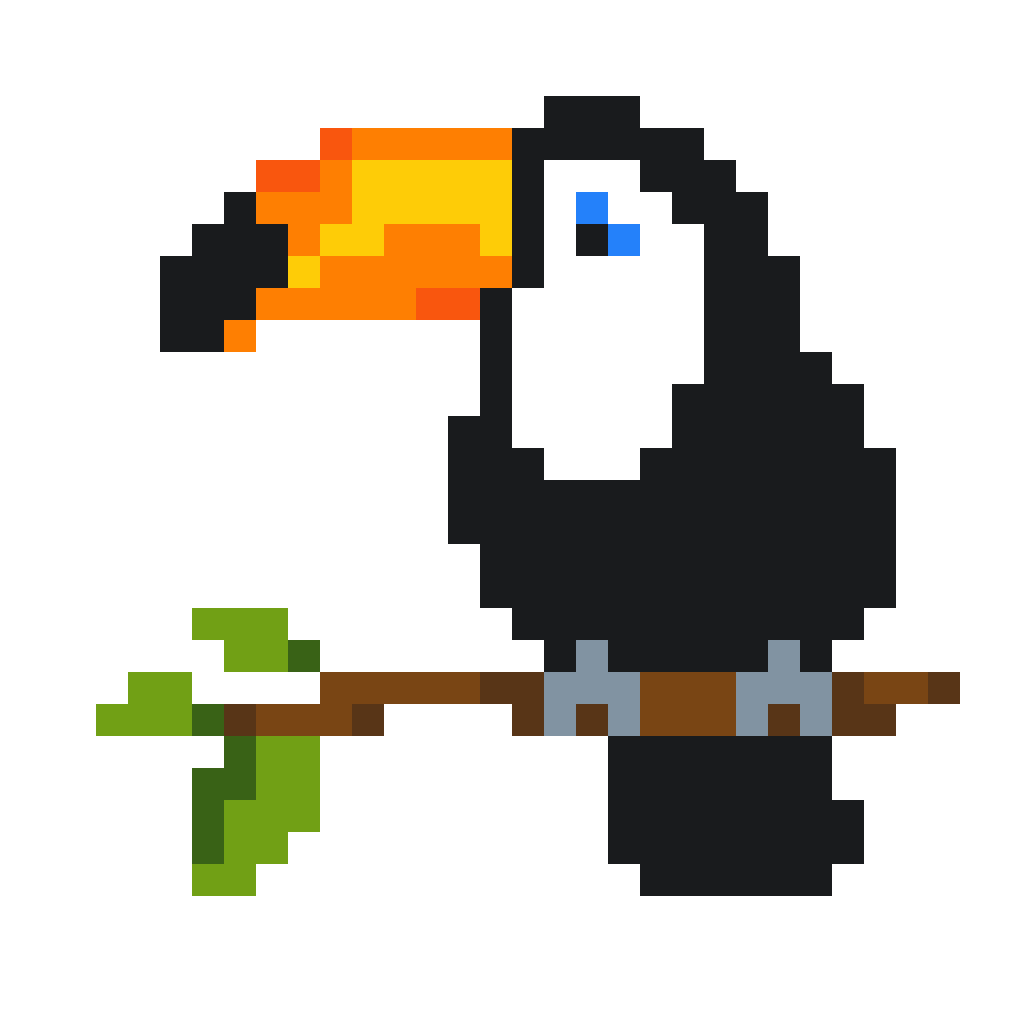
Cute animals · 32 × 32 · 11 colors
Place the beak before the smaller face details. Follow the grid where two colors meet to keep that bold outline clear.
All Beak, No Apologies
Draw a 32×32 boundary on your graph paper. Count across and down from the same corner each time. Empty squares matter too: they keep the ears, tails and little gaps in the right place.
Start with the outline or the largest patch of color. Add eyes and highlights after the shape looks right. The five-color cat is a useful starting point when you want fewer pencils on the table.
Open a picture to try Pixfun’s color-by-number controls. Select a color, tap its matching squares and zoom in for a closer look. On paper, match each number to the worksheet’s color key.
For more help choosing a canvas, read our pixel art grid-size guide.
Turn a close-up photo into a pixel grid, choose its colors and make it a picture you can color. The conversion happens in your browser.
Start with a clear silhouette and a small palette. The cat here uses five colors and the whale uses six. Each design is a real 32×32 grid, so you can copy it square by square or follow the numbered version in the browser.
Yes. Mark out a 32×32 square, then copy the colors from the visible grid one row at a time. The A4 worksheet gives you a numbered version with a color key if you prefer a guide.
Yes. These original Pixfun designs are free for personal and classroom use. Every design below opens in the browser coloring player and has a one-page A4 worksheet.
Yes. Use the free photo converter to choose a grid size and palette, then color the result or print a worksheet. Close-up photos with a simple background are easier to recognize on small grids.
Looking for a different starting point? Browse Christmas pixel art, find text prompts for AI Studio, or explore the full free coloring library.