
Pixel Art Grid Sizes for Coloring: 48×48, 64×64 or 96×96?
Compare pixel grid sizes by cell count, subject detail and coloring workload, with a clear guide to Pixfun AI Studio and photo-mode choices.
By Paweł Tymczuk ·
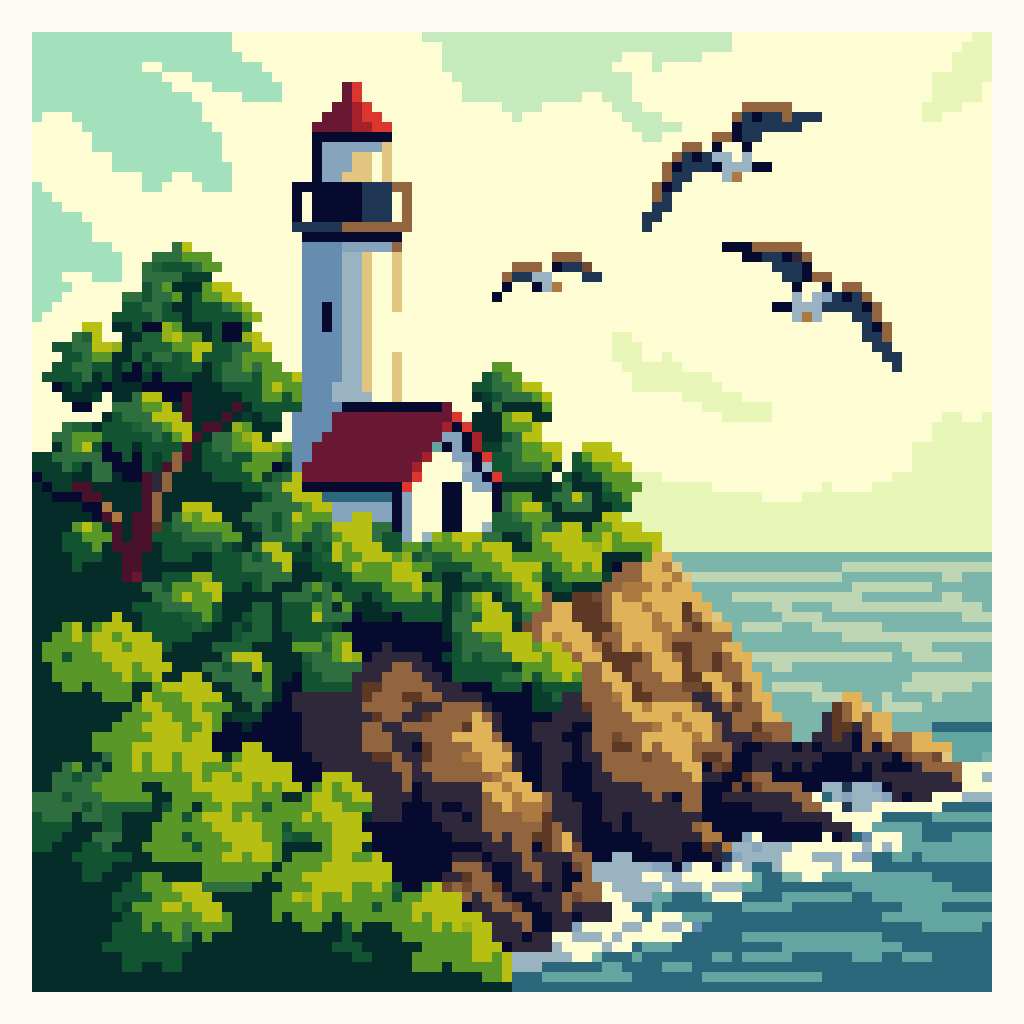
For pixel art coloring in Pixfun AI Studio, choose at least 64×64 for a clearer generated subject, or 96×96 for fuller scenes. The available sizes are 48×48, 64×64 and 96×96. A larger grid gives the picture more cells, but it can also create more small areas to color. Choose by the subject you want to recognize and the kind of coloring session you enjoy.
Cover: “Keeping the Light, Losing the Clock,” a real 96×96 picture from the Pixfun library.
What does a pixel art grid size tell you?
The dimensions count columns and rows. A 64×64 picture has 64 cells across and 64 down, for a total of 4,096 grid positions. That's different from the screen's pixel resolution or the size of a saved image. Here, we're choosing the little square cells that make up a coloring picture.
At the same fitted view on your screen, a grid with more columns displays smaller cells. Zoom helps you work with those cells, but the picture still has more positions to represent shapes. A broad curve may have more steps around its edge, and a small facial feature may have more room to exist.
Pixfun is our app. Its current mobile AI Studio selector shows dimensions, with 96×96 selected by default. It doesn't label those generation choices Easy, Medium and Hard. Library pictures and older artworks can have different grids; the selector describes the new puzzle you're asking Studio to create.
| AI Studio grid | Total grid cells | Useful starting consideration |
|---|---|---|
| 48×48 | 2,304 | Fewer positions; inspect whether your subject's key features remain clear. |
| 64×64 | 4,096 | A recommended starting choice for clearer generated subjects. |
| 96×96 | 9,216 | More room for a fuller scene, with more positions to work through. |
Those totals count the entire square. They don't tell you how many individual taps a picture will need. Background treatment, color areas and the tools you use can change the practical work.
What do real pictures look like at these sizes?
Here are three actual Pixfun library pictures, displayed at the same width. Their saved grids are 48×48, 64×64 and 96×96. Look first at the whole picture, then at the small features that give each subject its character.
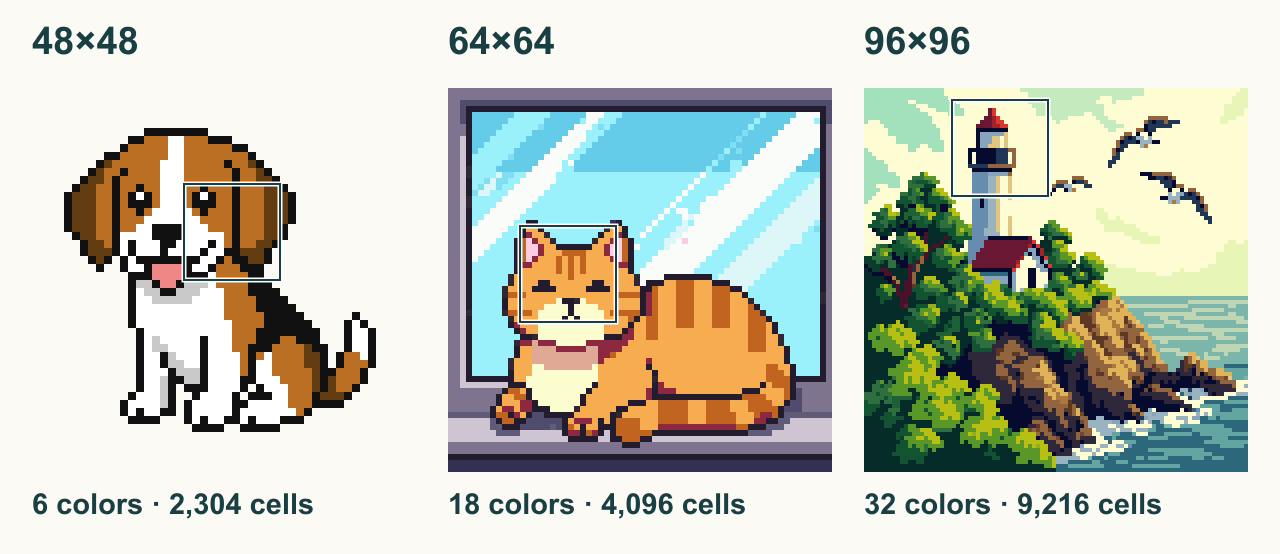
Published Pixfun library artwork, shown with its original cells and palettes. From left: “Tongue Out, No Notes,” “Sunny Windowsill Loaf” and “Keeping the Light, Losing the Clock.” The boxes mark the close-ups below.
The 48×48 puppy uses six colors. Its floppy ears, white muzzle and pink tongue carry the expression through broad shapes. The important features occupy plenty of the frame, so the picture has a clear identity without a complicated setting.
The 64×64 cat uses 18 colors. Its face and paws share space with a windowsill, blue glass and reflections. You can inspect the steps around an ear or the stripes in its coat while still reading the scene as a whole.
The 96×96 lighthouse uses 32 colors. Birds, trees, a rocky shore and sea waves sit around a smaller central building. More grid positions give this particular composition room for those supporting shapes.
These pictures have different subjects, palettes and creation histories. They demonstrate real cell sizes and ways to arrange a picture; they don't prove that changing one prompt from 48 to 96 will produce the same scene with extra detail. Library availability and access can also change.
How can you see the cell-size difference?
The close-ups below enlarge the boxed areas from those three pictures. Each box spans one quarter of its picture's width and height. That means the 48×48 example contributes a 12×12 patch, the 64×64 example a 16×16 patch, and the 96×96 example a 24×24 patch.
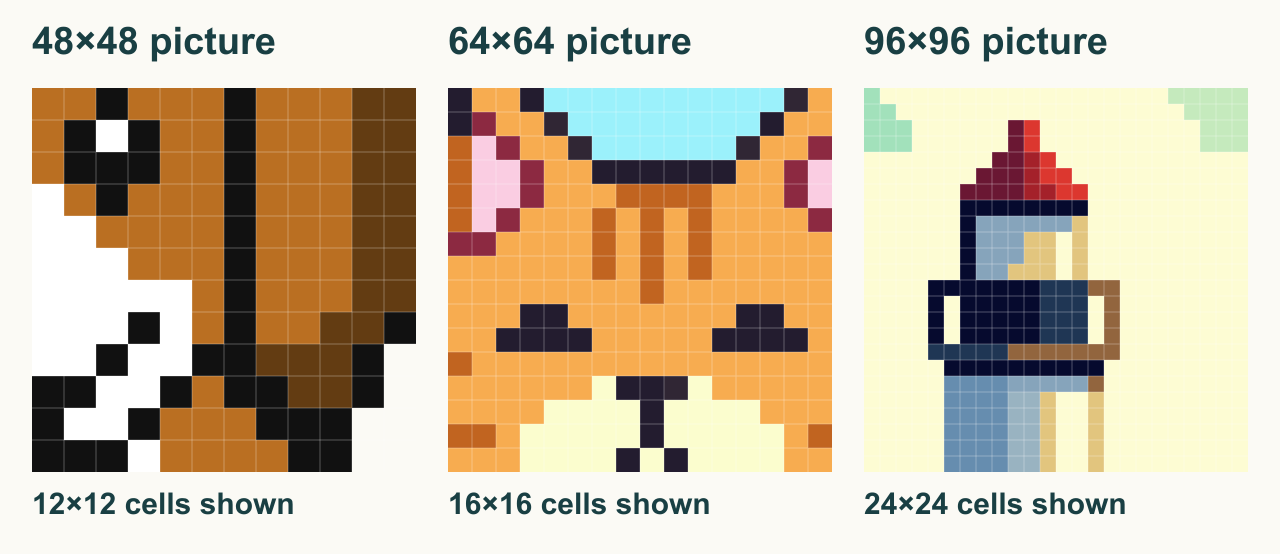
The underlying colors and cells are unchanged. Thin grid lines are added to these close-ups so neighboring cells of the same color remain visible. The panels are explanatory crops, not screenshots of the app's coloring screen.
At equal display widths, the puppy's cells are larger and the lighthouse's cells are smaller. Follow a boundary: an eye, the cat's ear or the lighthouse roof. You can see how individual squares build those edges, including where several adjacent cells share a color.
This is why zoom is useful. It makes the existing cells easier to work with; it doesn't add new ones. A 96×96 picture remains a 96×96 picture whether you view the whole scene or zoom in on its lighthouse.
When comparing your own AI results, inspect the actual pictures. Generating the same text at two sizes may also change the pose, crop, lighting and palette. A larger option gives the picture more positions, but it isn't an editing operation that preserves every choice in the smaller result.
Why doesn't cell count predict coloring time?
A 96×96 grid contains 2.25 times as many cells as a 64×64 grid. That arithmetic is useful for understanding the scale of the change. It isn't evidence that a picture will take 2.25 times as long to finish.
A broad patch of sky has a different coloring rhythm from scattered small highlights. Similar shades may take more attention than two strongly contrasting colors. A subject with many isolated cells can feel fiddlier than a larger one with clear, repeated areas.
Your own pace matters too. You might color by swatch, follow one object, or return to a picture across several sessions. There is no need to translate a cell total into a deadline. Pixfun has no timers or move limits, and progress auto-saves when you put the canvas down.
Think of grid size as one part of the workload. The complexity of the palette and arrangement matters as well. Two pictures at 64×64 may be very different projects, even though their table row is identical.
Which subjects suit 64×64 or 96×96?
For generated pictures, our starting advice is at least 64×64 for clearer representation. Use a close view of one subject: a bird on a branch, a mug with a broad handle, or a gift with a wide ribbon. The main shape should be easy to identify when you glance at the whole picture.
At 96×96, you have more room for a setting. A cabin can sit beside one tree, or a shop window can contain a couple of large objects. The extra cells don't remove the need to simplify. A distant town full of signs and figures can still lose the detail that makes it recognizable.
48×48 is an available Studio choice, but fewer cells don't make every result a better beginner picture. If its small face or thin outline becomes hard to read, simplify the subject or use a larger option. A clear larger picture may be more inviting to color than a smaller one whose details are uncertain.
Before generating, make one composition decision:
- Close-up subject. Give a pet, flower or familiar object most of the frame, with a quiet background.
- Subject with a setting. Keep the main object large and add one supporting feature, such as a branch or window.
- Fuller scene. Choose a larger grid and limit the cast of objects. Let broad shapes establish the place.
The AI pixel art generator guide covers prompts and styles. For subject ideas, the pixel art prompt collection gives you starting points you can trim to fit the composition you want.
What should you check in the generated picture?
You can learn more from inspecting the result than from guessing its complexity in advance. Look at it as a whole before zooming into individual cells. The picture should have a recognizable center, with its important objects separated from the background.
Then check the parts that matter to you. A pet portrait may depend on its eyes and muzzle. A toy train needs a readable engine and wheels. A broad flower may work perfectly well without fine veins in its leaves.
- Check the main silhouette. Can you name the subject without relying on the prompt? If not, a closer view or fewer objects may be more useful than adding details.
- Check the small features. Inspect faces, handles, lettering if any and narrow gaps. You don't have to keep a picture whose important feature looks wrong to you.
- Check the color pattern. Notice large repeated areas, similar shades and isolated cells. Decide whether that's a coloring session you'd enjoy.
- Choose what to simplify. If you want another version, change one meaningful part of the prompt or size. Each new AI generation costs one AI credit.
Generating again isn't an editing operation on the same picture. The new result may change in other ways, so don't treat extra attempts as a guaranteed route to a particular image. Start with a subject you like and a small number of clear details.
Does photo mode use the same size selector?
Photo mode is a separate route. In Pixfun Studio's camera mode, you can use the camera or choose a library photo, with a slider from 16×16 up to 96×96. It converts the photo's own pixels on the phone; no generative AI or AI credit is involved.
The photo's crop becomes especially important. A small bird far away in a large sky has little room to retain its features, whatever size you pick. A closer crop gives more of the grid to the subject. One clear face, pet, flower or object is a useful place to begin.
Use the live preview to inspect the actual picture as you adjust the photo slider. AI Studio's three generation options are not a list of the only sizes that photo mode can make. Our photo-to-pixel guide explains that workflow in more detail.
Photo puzzles stay on the device where you make them; they don't sync or have a device backup. If you want a familiar subject without asking a generator to invent it, that local photo route gives you a different starting point.
Which picture would you like to spend time with?
Choose a grid that gives your subject enough room, then inspect the picture itself. At least 64×64 is our recommendation for clearer generated subjects, and 96×96 is useful for fuller scenes. You can color a little at a time; a larger canvas doesn't ask you to finish it tonight.
For the coloring controls, see our pixel art coloring guide. Pixfun is available now on the App Store and Google Play. Download Pixfun when you have a subject in mind, and let one clear shape be the start.
Frequently asked questions
Which pixel art grid size should I choose in Pixfun AI Studio?
Choose at least 64×64 for a clearer visual representation of generated subjects, or 96×96 for fuller scenes. Pixfun AI Studio offers 48×48, 64×64 and 96×96, with 96×96 selected by default. Keep the subject clear at any size; more cells do not guarantee a better composition.
How many cells are in a 48×48, 64×64 or 96×96 grid?
A square 48×48 grid contains 2,304 positions, a 64×64 grid contains 4,096, and a 96×96 grid contains 9,216. These are total grid cells, not a promise about required taps or minutes. The picture, background, tools and your pace affect the amount of coloring work.
Does a 96×96 picture take exactly 2.25 times as long as 64×64?
No. A 96×96 grid has 2.25 times the cells of a 64×64 grid, but that ratio does not measure coloring time. Repeated color areas, tiny isolated cells, the tools you use and your pace can change the work. Treat cell count as a useful comparison, not a timer.
Can I select 32×32 in the mobile AI Studio?
The current mobile AI Studio selector offers 48×48, 64×64 and 96×96, so 32×32 is not an available AI generation choice there. Older pictures may use other grids. Photo mode is a separate route with a slider from 16×16 up to 96×96.
Are the grid comparison pictures real Pixfun artwork?
Yes. The puppy, cat and lighthouse are published Pixfun library artworks, shown with their saved cells and palettes. The cover is the 96×96 lighthouse. Labels, crop boxes and close-up grid lines were added for explanation. These are different pictures, not a controlled same-prompt generation test.